How to Bulk Download CVs on Viec Lam 24h Super Fast for HR
Are you a busy HR professional who just launched a successful recruitment campaign on Viec Lam 24h? Hundreds of incoming CVs bring great joy, but right after that comes a "nightmare" called: Manual CV Downloading.
The struggle of downloading CVs one by one on Viec Lam 24h
Currently, the Viec Lam 24h platform does not support a one-click feature to download all CVs at once. Instead, HR teams have to perform a tedious, repetitive sequence of actions:
- Click the 3-dot icon (⋮) on each candidate.
- Find and click the Tải CV (Download CV) button.
- Repeat dozens or hundreds of times per page.
- Move to the next page and... keep clicking.
This not only causes hand fatigue and wastes time (potentially taking hours), but also makes it easy to accidentally miss potential candidates.
Don't worry! In this article, we will show you an extremely simple trick to automatically bulk download CVs on Viec Lam 24h with just 1 click—completely safe and requiring no third-party software installation.
Steps to set up automated bulk CV downloading
This method uses a safe script that runs directly in your browser (Chrome/Edge/Coc Coc) to simulate human mouse clicks, but at lightning speed.
Step 1: Log in and go to the Candidate Management page
First, log in to your Employer account on Viec Lam 24h. Then, navigate to the Hồ sơ ứng tuyển (Candidate Management) section.
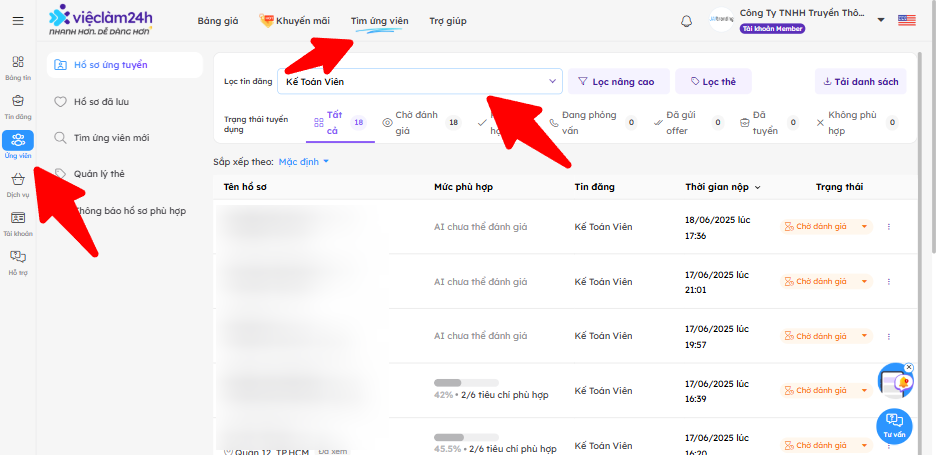 Candidate application management page on Viec Lam 24h
Step 2: Filter the job posting you want to download CVs from
To avoid downloading the wrong CVs or too many unnecessary files, use the filter. Under Lọc tin đăng (Filter job postings), select the exact position you need CVs for (e.g., Accountant). You can also filter by status (e.g., Pending Review or Suitable).
Step 3: Open Developer Tools in your browser
Don't worry if you don't know how to code—this step is very simple:
- Press F12 on your keyboard (Or right-click on any empty space on the webpage → Select Inspect).
- A panel will appear on the right or bottom of your screen. Find and switch to the tab named Console.
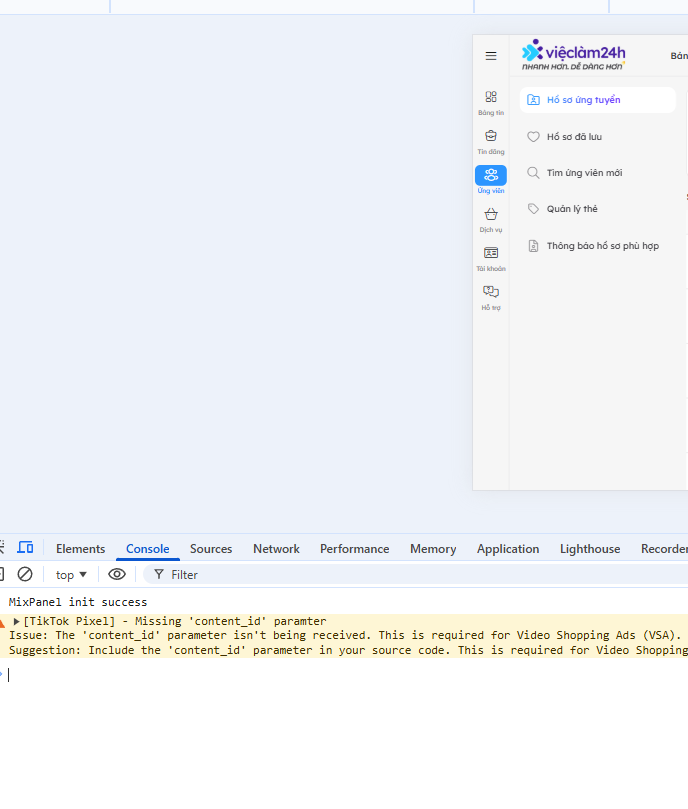 The Console tab in Developer Tools — where you will paste the script
Step 4: Copy and Paste the auto-download script
Copy the entire code snippet below, Paste it into the Console window you just opened, and press Enter:
<code>(async function() {
const clickDelay = 1500; // Wait 1.5s between each download
const pageLoadDelay = 5000; // Wait 5s for the next page to load
const sleep = (ms) => new Promise(resolve => setTimeout(resolve, ms));
function getNextPageButton() {
const rightArrowIcon = document.querySelector('.svicon-chevron-right, .svicon-angle-right, .fa-chevron-right');
let nextBtn = rightArrowIcon ? rightArrowIcon.closest('button, a, li, div') : null;
if (!nextBtn) {
const nextBtns = Array.from(document.querySelectorAll('button, a, li, span')).filter(el => el.innerText && el.innerText.trim() === '>');
nextBtn = nextBtns.reverse()[0];
}
if (!nextBtn) return null;
const btnHTML = nextBtn.outerHTML.toLowerCase();
const isDisabled = nextBtn.hasAttribute('disabled') || btnHTML.includes('disabled') || btnHTML.includes('cursor-not-allowed') || btnHTML.includes('text-neutral-40');
if (isDisabled) return null;
return nextBtn;
}
async function processAllPages() {
let hasNextPage = true;
let pageCount = 1;
const maxPagesLimit = 20; // Safety limit of 20 pages
console.log('%c Starting automated bulk download...', 'color: green; font-weight: bold; font-size: 14px;');
while (hasNextPage && pageCount <= maxPagesLimit) {
console.log(`%c--- PROCESSING PAGE ${pageCount} ---`, 'color: orange; font-weight: bold;');
const ellipsisIcons = document.querySelectorAll('i.svicon-ellipsis-v');
const menuButtons = Array.from(ellipsisIcons).map(icon => icon.closest('button')).filter(Boolean);
for (let i = 0; i < menuButtons.length; i++) {
menuButtons[i].click(); // Open 3-dot menu
await sleep(400);
const downloadBtn = Array.from(document.querySelectorAll('[role="menuitem"]')).find(el => {
return el.querySelector('.svicon-download') || (el.innerText && el.innerText.includes('Tải CV'));
});
if (downloadBtn) {
console.log(`Downloading CV for candidate ${i + 1} on Page ${pageCount}...`);
downloadBtn.click();
await sleep(clickDelay);
} else {
menuButtons[i].click(); // Close menu if no download button
await sleep(200);
}
}
const nextButton = getNextPageButton();
if (nextButton) {
console.log(`Switching page... waiting ${pageLoadDelay/1000}s.`);
nextButton.click();
pageCount++;
await sleep(pageLoadDelay);
} else {
console.log('%c COMPLETED! All pages have been processed.', 'color: green; font-weight: bold; font-size: 16px;');
hasNextPage = false;
}
}
}
await processAllPages();
})();</code></pre>
Step 5: Grant permission to download multiple files (Very important!)
<p>As soon as the 2nd or 3rd CV begins downloading, your browser (Chrome/Coc Coc) may show a small notification at the top corner saying: "This site is attempting to download multiple files".
You must click Allow. If you click Block, the download process will stop.
Important notes
- Keep the Viec Lam 24h tab active while the script is running. If you switch to another tab or turn off your computer, the process may be interrupted.
- The script above is configured with safe delay intervals to mimic human actions, preventing your account from triggering system warnings for sending requests too quickly.
Wishing all HR professionals huge time savings and great success in recruiting the best candidates!