How to Copy a File List in Windows into a Text List
If you have an existing list of files on Windows and are tired of typing them out one by one into Excel or Word, this guide will show you the fastest way to copy the entire file list into plain text.
First, suppose you have a folder like this on Windows:
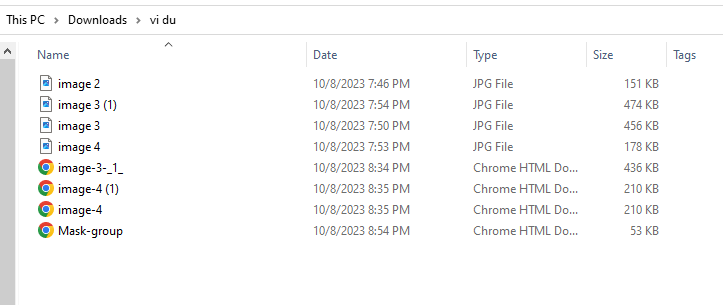
The easiest method is to press CTRL+A to select all files, or simply select the specific files you want to copy. Once selected, hold down the SHIFT key and right-click (make sure you keep holding down the Shift key).
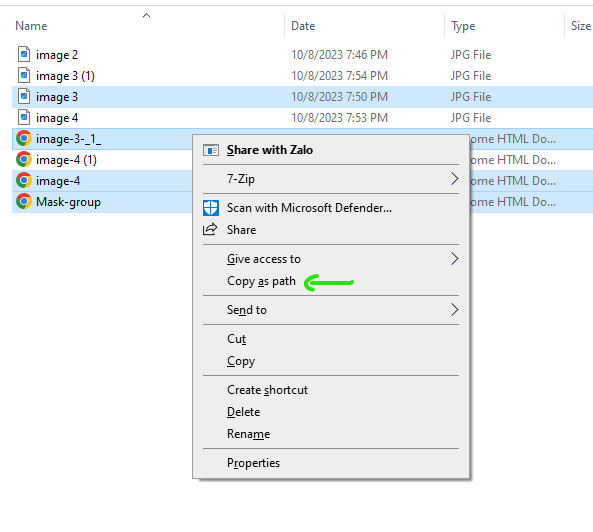 A hidden command called "Copy as path" will appear—click on it.
Next, open a text editor or Excel; I'll use Notepad for speed. When you paste the list, notice that the full file paths are included, so you can use Notepad's Replace feature to clean them up.
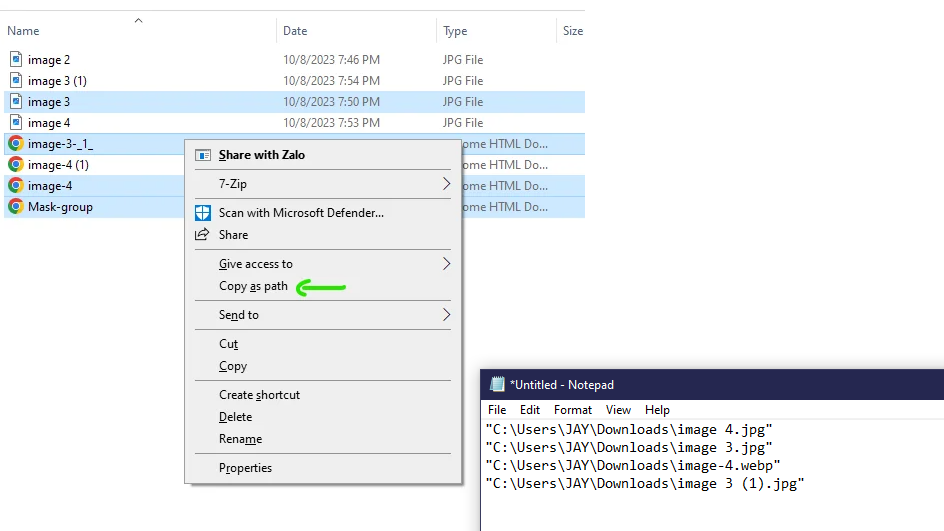
Use Replace to remove all the unnecessary folder paths. Copy the path from the very first character up to the last \ backslash. Check the example below for reference:
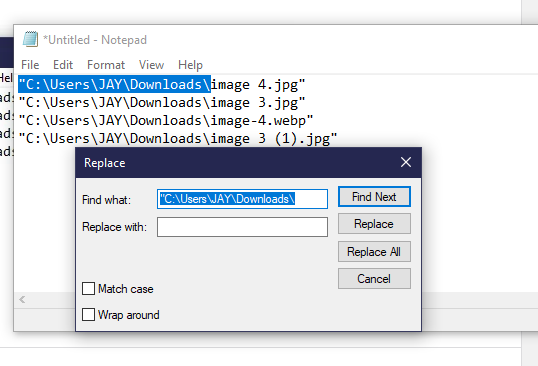
After that, use Replace again to remove the closing quotation mark at the end of each line, and your list is complete. This exact method works in Excel as well!