Download Beautiful PowerPoint & Google Slides Templates
Before downloading the free PowerPoint files, let's explore 5 helpful tips for creating effective PowerPoint presentations below.
1. Keep the Design Clean and Lightweight
Delivering a presentation is an essential skill in both work and study. PowerPoint is a useful tool for creating presentation slides. However, to deliver an effective presentation, you should keep the following criteria in mind.
2. Create a Clear Theme for Each Slide
Your slides should be designed to be simple, easy to read, and uncluttered. Avoid using too many colors, overly bold images, tiny text, or cramming too much content onto a single slide. Use minimalist images, charts, and text to avoid overwhelming the audience. Additionally, you should use simple, legible fonts such as Arial, Calibri, or Times New Roman.
3. Use Fonts and Colors Appropriately
Each slide should have one main topic to help viewers easily follow and understand your content. This way, you help your audience stay focused on your key idea without getting distracted by irrelevant information. To create cohesion across your slides, you can use techniques like animations, transitions, or hyperlinks for smooth movement between slides.
4. Use Consistent Images and Charts
Choose suitable fonts and colors to attract attention and convey the core message of your presentation. However, be careful to avoid overusing overly contrasting colors or hard-to-read fonts. You may want to use a signature color to establish a consistent identity for your presentation. You should also use contrasting colors for different topics to help viewers easily distinguish your main ideas.
5. Use Presentation Techniques to Make a Strong Impression
Use images and charts that match your content to help viewers easily grasp your ideas. However, arrange them logically to maintain consistency throughout the presentation. Using too many images and charts can distract the audience and keep them from focusing on your main point. Only use visuals that are truly necessary and ensure they align with your presentation content.
If you follow the criteria above, you will create effective PowerPoint slides that capture your audience's attention. In particular, you should also use pre-built templates and slide masters to save time and enhance the visual appeal of your presentation. Furthermore, you can learn more presentation techniques and apply them to create even more polished and impressive decks.
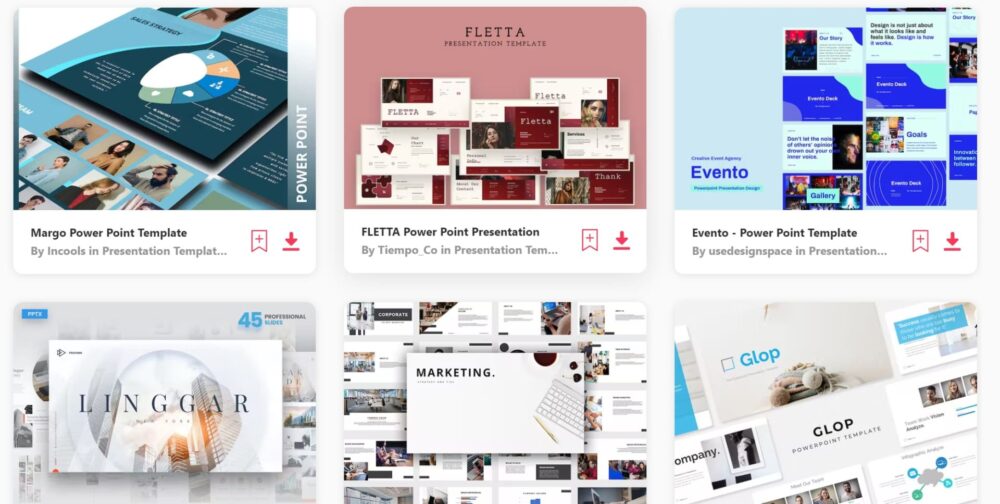 >> 🔽 Link to Beautiful PowerPoint Templates Collection
PowerPoint vs. Google Slides: Which Presentation Tool Is Better?
PowerPoint and Google Slides are both widely used presentation tools and popular choices for creating professional decks. However, each has its own strengths and weaknesses. To choose the right presentation tool for your needs, consider the following factors:
PowerPoint
Developed by Microsoft, PowerPoint is part of the Microsoft Office suite. It is the most widely used presentation tool in the world. PowerPoint offers richer features and layout options compared to Google Slides. Users can choose from a wide variety of layouts, themes, and templates to create professional presentations. In addition, PowerPoint provides extensive editing and customization features, allowing users to build diverse presentations tailored to their needs.
Moreover, PowerPoint offers more advanced presentation techniques than Google Slides, helping you create more impactful decks. Features like animations, transitions, and sound effects add engaging motion and make your presentation more dynamic. You can also use these techniques to highlight key points in your presentation.
However, some drawbacks of PowerPoint are that it requires a paid license and cannot be accessed from just any device unless the software is installed.
Google Slides
Developed by Google, Google Slides is part of Google Drive. It is a free presentation tool accessible from any device with an internet connection. Real-time sharing and multi-user collaboration are also among the key advantages of Google Slides.
However, Google Slides' customization features and presentation techniques are more limited compared to PowerPoint. Google Slides does not offer as many layout options as PowerPoint, which can make it more challenging for users to create highly polished, professional presentations.
With the factors above in mind, you can choose the presentation tool that best fits your needs. If you need extensive customization and rich presentation features, PowerPoint is the better choice. However, if you want a free presentation tool accessible from any device, Google Slides will be a more suitable option.
Detailed Comparison Between PowerPoint and Google Slides
1. Features and Layout Options
PowerPoint provides a wide range of editing and customization features, helping users create diverse presentations tailored to their needs. Additionally, PowerPoint offers numerous layouts, themes, and templates for users to choose from.
Google Slides also offers several editing and customization features, though more limited than PowerPoint. Its layout options are fewer than PowerPoint's as well.
2. Presentation Techniques
PowerPoint offers a richer set of presentation techniques than Google Slides. Features such as animations, transitions, and sound effects create engaging motion and bring your presentation to life.
Google Slides also includes several presentation features, but not as many as PowerPoint. While Google Slides' techniques can help you build clean and professional presentations, they are not as versatile as PowerPoint's.
3. Pricing
PowerPoint is part of the Microsoft Office suite, so you need to pay to use it. The cost of Microsoft Office can be relatively expensive.
Google Slides is free and accessible from any device with an internet connection.
4. Accessibility
PowerPoint must be installed on a computer to be used. This means you cannot access PowerPoint from just any device unless the software is installed.
Google Slides can be accessed from any device with an internet connection. This allows users to access their presentations from anywhere without installing any software.
Conclusion
Both PowerPoint and Google Slides are great presentation tools, each with its own pros and cons. Choosing the right tool depends on your specific requirements and goals. If you need extensive customization and rich presentation features, PowerPoint is the better option. However, if you want a free tool accessible from any device, Google Slides is the more suitable choice.
Use presentation techniques such as animations, transitions, and sound effects to make your presentation memorable. However, use them thoughtfully and avoid overdoing it so you do not distract your audience. Used well, these techniques create engaging motion, make your presentation more dynamic, and help emphasize your key points.