Fixing Shopify E-Commerce Website Errors: A Comprehensive A-to-Z Guide
1. Introduction to Common Shopify Errors
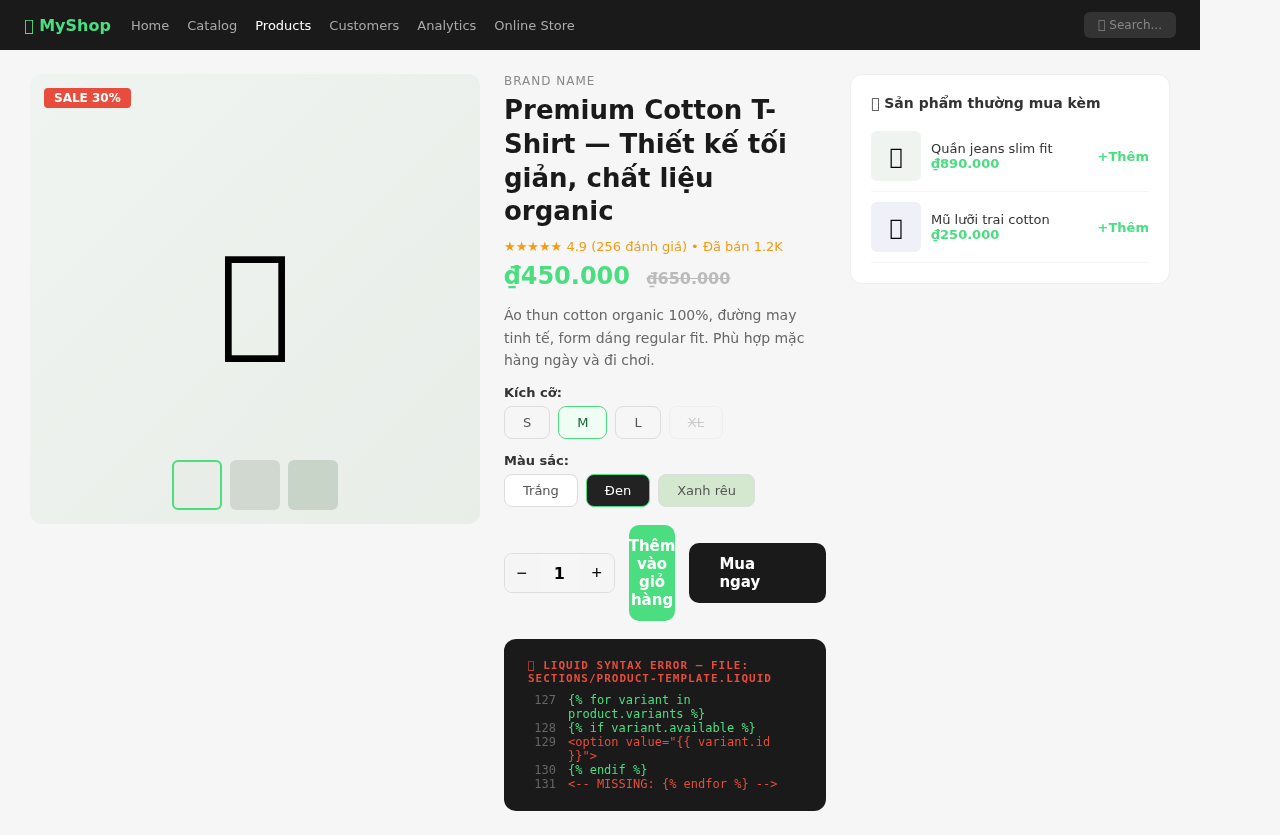 Shopify is one of the world's leading e-commerce platforms, trusted by millions of businesses to build their online stores. With a user-friendly interface, a rich app ecosystem, and flexible scalability, Shopify has become the top choice for businesses of all sizes. However, like any technology platform, Shopify websites are not immune to technical issues during operation. These errors can severely impact user experience, conversion rates, and store revenue. According to statistics from the Baymard Institute, up to 69.82% of shopping carts are abandoned, and a significant portion of that stems from technical issues on the website. Therefore, understanding and knowing how to fix Shopify website errors is an essential skill that every store owner needs to master.
In this article, we will compile and provide a detailed guide on how to resolve the most common errors on a Shopify website. From theme errors, payment issues, and SEO errors to page load speed and security problems—everything will be analyzed systematically and clearly. Whether you are a beginner or already experienced with Shopify, this article will equip you with the knowledge and tools needed to maintain a stable and high-performing online store.
2. Shopify Website Theme Errors
2.1. Broken Layout or Incorrect Display
One of the most common issues Shopify users encounter is a broken website layout, misaligned elements, or unexpected changes in fonts and colors. The cause usually stems from improper theme code edits, conflicts between third-party apps, or incompatible theme updates.
How to fix: First, you need to check whether the issue is caused by the theme by temporarily switching to a default Shopify theme like Dawn. If the interface displays normally with the default theme, the problem lies in your current theme. Go to Shopify Admin > Online Store > Themes > Actions > Edit Code and inspect recently modified Liquid, CSS, and JavaScript files. Use the "Rollback" feature to revert to a previous version if needed. Additionally, you should check your `theme.scss.liquid` or `theme.css` file to ensure there are no CSS syntax errors affecting the entire layout.
2.2. Liquid Syntax Error
A Liquid syntax error is one of the most critical errors because it can prevent the entire website from rendering. Liquid is Shopify's templating language, and just one missing bracket or syntax mistake can trigger a 500 Internal Server Error across the whole site. When encountering this error, you will typically see a "Liquid syntax error" message along with the exact file and line number in the admin panel.
How to fix: Carefully read the error message to pinpoint the exact file and line of code causing the issue. Common mistakes include missing closing tags like {% endif %}, {% endfor %}, {% endcase %}, or incorrect syntax for filters and tags. To be safe, always back up your theme before making any changes. Shopify offers a "Theme History" feature that allows you to review edit history and easily restore a previous version.
2.3. Product Images Not Displaying
Broken, missing, or improperly sized product images are a frequent issue, especially when you have just imported products from another platform or changed themes. Causes may include broken image URLs, overly large image files, or a theme that does not support newer image formats like WebP.
How to fix: Check the image URLs in your product admin section to ensure the paths are valid. Optimize image dimensions before uploading—Shopify recommends a maximum size of 2048x2048 pixels and a file size under 20MB. Use JPEG for standard product photos and PNG for images requiring a transparent background. You should also inspect theme files for faulty image-handling code, especially `product.liquid`, `product-thumbnail.liquid`, or sections related to product display.
3. Checkout & Payment Errors
3.1. Customers Unable to Complete Checkout
This is the most critical error for any e-commerce store because it directly impacts revenue. Customers may encounter an error message when clicking the pay button, the checkout page may fail to load, or transactions may be declined without a clear reason. Common causes include misconfigured payment gateways, SSL certificate issues, or conflicts with third-party apps interfering with the checkout process.
How to fix: First, check your payment gateway settings in Shopify Admin > Settings > Payments. Make sure at least one payment gateway is activated and properly configured. If using Shopify Payments, verify that your account status is active and in good standing. Next, check your website's SSL certificate—Shopify automatically provides free SSL, though it sometimes takes time to activate or requires domain verification. Finally, try temporarily disabling checkout-related apps to identify if any app is causing a conflict.
3.2. "Cart Is Empty" or Cleared Cart Errors
Many customers complain that after adding products to their cart and navigating to another page, their cart suddenly becomes empty. This error is usually related to browser cookies and sessions, especially when the website uses heavy custom JavaScript or improper redirects.
How to fix: Shopify uses cookies to store cart information, so check whether any JavaScript code is interfering with cookies. Ensure all redirects on the website are implemented properly without dropping the session. If you use a custom cart app, check the AJAX Cart API configuration. Additionally, verify whether your theme uses "Cart Notes" or custom fields—these elements can sometimes cause issues if not handled correctly.
3.3. Tax and Shipping Calculation Errors
Displaying incorrect taxes or shipping fees not only frustrates customers but can also lead to legal issues. This error often occurs when regional tax configurations are inaccurate or shipping settings do not match the products.
How to fix: Go to Shopify Admin > Settings > Taxes and Duties to review your tax configuration. Make sure you have registered tax nexus in the required regions and configured accurate tax rates for each product type. For shipping fees, go to Settings > Shipping and Delivery to inspect your shipping profiles, ensuring every product is assigned to the right profile and shipping rates are set accurately. Use your payment gateway's "Test mode" to test the entire process before going live.
4. SEO and Page Load Speed Errors
4.1. Website Loading Too Slowly
Page load speed is a crucial factor affecting both user experience and SEO rankings. According to Google, 53% of mobile users will leave a webpage if it takes longer than 3 seconds to load. A Shopify website can be slow due to several reasons: unoptimized images, too many running apps, heavy JavaScript code, or a complex theme structure.
How to fix: Use Google PageSpeed Insights or GTmetrix to analyze your website's speed in detail and receive specific improvement recommendations. Optimize images by compressing them before uploading (using TinyPNG or ShortPixel), converting them to WebP format, and implementing lazy loading. Limit the number of installed apps—each app adds JavaScript and CSS code to your site, so only keep the ones you truly need. Consider switching to a lightweight, optimized theme like Dawn (Shopify's official theme) or speed-optimized themes from the Shopify Theme Store.
4.2. Product Pages Not Indexed
Another common SEO issue is product pages not appearing on Google even long after being published. Causes may include an accidentally enabled `noindex` tag, a `robots.txt` file blocking Googlebot, or a URL structure that is not search-engine friendly.
How to fix: Check your website's `robots.txt` file at `yourstore.com/robots.txt` to ensure no "Disallow" directives are blocking important pages. Inspect the source code of your product pages to verify there is no `<meta name="robots" content="noindex">` tag. In Shopify Admin, go to Online Store > Preferences and make sure no code is blocking search engines in the "Additional scripts" section. Use Google Search Console to check indexing status and submit your XML sitemap—Shopify automatically generates a sitemap at `yourstore.com/sitemap.xml`.
4.3. Duplicate Content
Duplicate content is a serious SEO issue that can lead to Google penalties. On Shopify, this typically happens when the same product appears in multiple collections with different URLs, or when both the `www` and non-`www` versions of the site operate simultaneously.
How to fix: Use canonical URL tags to specify the official URL for each page. Shopify automatically adds canonical tags for product pages, but you should verify that they are working properly. Configure a 301 redirect from the non-`www` domain to the `www` domain (or vice versa) in Shopify Admin > Domains. Write unique product descriptions and avoid copy-pasting from suppliers. Use SEO apps like Yoast SEO for Shopify or Plug in SEO to automatically detect and fix duplicate content issues.
5. Third-Party App Integration Errors
5.1. App Conflicts
The Shopify App Store offers thousands of apps, but not all of them are fully compatible with one another. App conflicts can cause unpredictable issues: from UI display glitches and broken features to crashing the entire website. Warning signs include a feature suddenly stopping after installing a new app, or JavaScript error messages appearing in the browser console.
How to fix: Apply the process of elimination—temporarily disable apps one by one to identify the culprit. Once identified, check if there is a new update for the app or contact the developer for support. To prevent conflicts, always check app reviews and user counts before installing, prioritize apps certified as "Built for Shopify," and test on a duplicate backup theme before applying changes to your live theme.
5.2. Apps Not Working After an Update
After updating a theme or upgrading an app version, some apps may stop working due to incompatibility with the new version. This is especially common with apps that inject code directly into theme files and rely on older Shopify APIs.
How to fix: Before updating, always back up your current theme by creating a duplicate in Shopify Admin. After updating, thoroughly test all critical website functions. If an app stops working, try uninstalling and reinstalling it so the app can automatically re-inject the necessary code into the theme. Check the app's settings page to ensure all API keys and tokens are still valid. Contact the app's support team if the issue persists.
6. Security and Data Errors
6.1. "Not Secure" Browser Warning
When customers visit your website and see a "Not Secure" warning in the browser address bar, they are very likely to leave immediately. This warning appears when the SSL certificate has not been installed or has expired, leaving the connection between the browser and server unencrypted.
How to fix: Shopify automatically issues a free SSL certificate for all domains connected to your store. However, this process can take up to 48 hours after connecting a new domain. To check SSL status, go to Shopify Admin > Domains and look for "SSL pending" or "SSL active." If SSL is still pending after 48 hours, review your domain's DNS configuration—ensure the A record points to Shopify's IP address (23.227.38.65) and the `www` CNAME record points to `shops.myshopify.com`. Once DNS is verified, contact Shopify Support to reissue the certificate.
6.2. Lost or Corrupted Customer Data
Losing order data, customer information, or transaction history can have severe consequences for a business. Causes may include synchronization errors between Shopify and external systems (ERP, CRM), or accidental deletion during store administration.
How to fix: Shopify automatically backs up order and customer data, but you should also periodically export your data as CSV files for offline backup. For data-syncing apps, check the logs to determine the time and cause of the sync failure. Use the Shopify API to verify data integrity across systems. If data is lost, contact Shopify Support immediately—they can restore data from backups in certain cases.
7. Advanced Technical SEO Errors
7.1. Unoptimized URL Structure
Shopify automatically generates URLs based on product and collection titles, but sometimes this structure is not optimal for SEO. Common issues include mandatory `/collections/` and `/products/` prefixes, overly long URLs, special characters, or URLs changing when product titles are edited.
How to fix: Although Shopify does not allow removing the `/collections/` and `/products/` prefixes from URLs, you can optimize the rest of the URL. In the product or collection editor, scroll down to "Search engine listing preview" and click "Edit website SEO" to customize the URL handle. Use concise URLs containing your primary keyword, separated by hyphens, and avoid stop words. Important: do not change the URLs of pages that already rank well on Google unless you set up proper 301 redirects.
7.2. Missing Schema Markup / Structured Data
Schema markup (structured data) helps Google understand your webpage content and display rich snippets in search results, such as star ratings, product prices, and stock availability. Many Shopify stores overlook this element, missing out on opportunities to boost click-through rates (CTR) from search results.
Frequently Asked Questions
[faqs]
8. Professional Shopify Website Debugging Workflow
To fix Shopify website errors efficiently and professionally, you need a systematic debugging workflow. Below are the steps we recommend:
- Define the scope of the error: Does the error occur on all pages or only specific ones? On all devices or only mobile/desktop? On all browsers or just one? Narrowing down the scope helps you quickly isolate the root cause.
- Check the Browser Console: Open Developer Tools (F12) and inspect the Console tab for JavaScript errors. This is the first place that reveals the cause of most front-end issues. 404 errors, CORS issues, or JavaScript runtime errors are usually clearly displayed here.
- Check the Network Tab: In Developer Tools, switch to the Network tab and reload the page. Look for failed requests (highlighted in red), especially CSS, JavaScript, font, and image files that fail to load. Pay attention to HTTP status codes—404 means the file does not exist, while 500 indicates a server error.
- Back up the current theme: Before making any code changes, always create a theme backup. Go to Shopify Admin > Online Store > Themes > Actions > Duplicate.
- Disable apps one by one: Deactivate apps sequentially to identify the one causing the error. Start with recently installed apps or those with a major impact on the front end.
- Roll back theme code: If you have edited theme code, use the "Theme History" feature to review recent changes and roll back if necessary. Shopify keeps a history of all code changes, making it easy to compare and restore.
- Test with a default theme: Switch to Dawn or another default theme to determine if the error is caused by your current theme. If the error disappears, the issue lies within your theme.
- Contact support: If you have tried all the steps above and still cannot resolve the issue, do not hesitate to contact Shopify Support or hire a Shopify expert. Provide them with as much information as possible: screenshots of the error, steps already taken, and the specific affected URLs.
[/faqs]
9. Tools to Help Fix Shopify Errors
To make troubleshooting your Shopify website easier and more effective, here are the professional tools we recommend:
9.1. Speed Analysis Tools
Google PageSpeed Insights (Free): Provides speed scores for both mobile and desktop along with detailed improvement suggestions. Especially useful for Core Web Vitals metrics such as LCP (Largest Contentful Paint), FID (First Input Delay), and CLS (Cumulative Layout Shift).
GTmetrix (Free tier available): Analyzes the load time of each page element in detail, displaying a waterfall chart to help you pinpoint exactly which file is slowing down your website. GTmetrix also allows testing from multiple geographic locations and devices.
Shopify Analyzer (Free): A Shopify-specific tool that analyzes platform-specific factors such as the number of running apps, theme size, and basic SEO issues on your Shopify store.
9.2. SEO Audit Tools
Google Search Console (Free): An indispensable tool for monitoring website performance on Google, detecting indexing errors, mobile usability issues, and structured data (schema) problems. Connect Search Console to Shopify by verifying your domain via DNS record or HTML tag.
Ahrefs Webmaster Tools (Free): Scans your entire website to detect over 100 types of SEO issues, including broken links, missing tags, duplicate content, and speed problems. Especially useful for tracking your backlink profile and keywords.
9.3. Theme Debugging Tools
Shopify Theme Inspector for Chrome (Free): An official extension from Shopify that helps you inspect Liquid template structures, view JSON data for sections and blocks, and debug theme rendering performance. This tool is particularly helpful when you need to understand how a theme displays product and collection data.
10. Error Prevention and Routine Website Maintenance
Prevention is better than cure—this holds true for Shopify websites as well. Below are preventive measures to minimize the risk of errors:
10.1. Weekly Maintenance Checklist
Every week, you should spend 30–60 minutes checking the following items: test page load speed via Google PageSpeed Insights, check Google Search Console for new errors, review recent orders for anomalies in the checkout process, inspect the latest product pages to ensure proper display, and review analytics reports to spot pages with unusually high bounce rates—which can be a sign of technical errors.
10.2. Monthly Maintenance Checklist
On a monthly basis, you should: back up your entire theme (duplicate theme), export product, customer, and order data as CSV files, check and update all installed apps, audit and remove unused apps, verify all redirects and broken links on the website, and read the latest updates in the Shopify Changelog to stay informed about changes that could affect your store.
10.3. Pre-Promotion Checklist for Major Sales Events
Before major sales events such as Black Friday, Cyber Monday, Lunar New Year, or flash sales, conduct a comprehensive check: run load testing on your website using tools like Loader.io or k6, test the end-to-end checkout process across multiple devices and browsers, verify that all discount codes and promotional campaigns work properly, check order notification email configurations, ensure your customer support team is ready to handle incoming issues, and prepare a backup plan in case the website experiences downtime.
10.4. Admin Staff Training
One of the most common causes of website errors is human error by admin staff. Ensure that all employees granted Shopify admin permissions are thoroughly trained on: how to use Shopify Admin safely, never editing theme code without knowledge of Liquid/HTML/CSS, the SEO-compliant process for adding new products, how to respond when spotting an error (taking screenshots, noting the time and actions taken, and reporting immediately to technical staff), and the importance of never sharing admin login credentials.
11. When Should You Hire a Shopify Troubleshooting Expert?
While many Shopify errors can be resolved on your own using the guide in this article, there are situations where you should consider hiring an expert to ensure safety and efficiency:
- When the error involves complex Liquid code and you lack web development knowledge.
- When the website breaks during peak business hours and requires urgent resolution in a short timeframe.
- When you need custom functionality that existing themes and apps cannot deliver.
- When an error appears after editing theme code yourself and you cannot identify the cause.
- When you want to comprehensively optimize website speed, including code, database, and server configuration (Shopify Plus).
- When you need to migrate data from another platform to Shopify while preserving SEO and URL structures.
At JAYbranding, we have a team of experienced Shopify specialists ready to help you resolve any technical issue, from basic to complex. With a professional workflow, we are committed to fast turnaround, data safety, and optimizing your website's performance.
12. Conclusion
Fixing Shopify e-commerce website errors is a vital skill for every online store owner. Through this article, we have provided you with a comprehensive overview of the most common errors—from theme issues, checkout errors, and SEO problems to speed and security concerns. More importantly, you now have detailed troubleshooting methods, a professional debugging workflow, and a list of powerful supporting tools.
Remember, a smoothly running website not only delivers a great customer experience but also serves as a solid foundation for sustainable business growth. Investing time in maintenance and error prevention will save you significant costs and effort in the long run. Do not wait until your website breaks to look for a fix—proactively build a routine inspection and maintenance process starting today.
If you need in-depth support for fixing Shopify website errors, do not hesitate to contact JAYbranding. We are always ready to accompany your business on its journey to conquer the e-commerce market. With experience successfully delivering hundreds of Shopify projects, JAYbranding is confident in providing the most optimal solution for your online store.
This article was compiled by the JAYbranding team—an official Shopify Expert partner in Vietnam. We provide Shopify website design, technical troubleshooting, SEO optimization, and comprehensive e-commerce strategy consulting.
Experiencing an urgent website issue? Contact JAYbranding's professional WordPress website repair service now — 24/7 support, free backup before fixing.