Fix WooCommerce E-Commerce Website Errors: 50+ Common Issues & Solutions [2025]
Are you running an online store with WooCommerce and facing frustrating issues like a broken cart, frozen checkout, failed payments, products not displaying properly, or order confirmation emails not sending? These are extremely common problems that almost every long-time WooCommerce user encounters at least once. In this article, we will compile all common WooCommerce errors and guide you on how to fix each one thoroughly so your e-commerce website runs smoothly again.
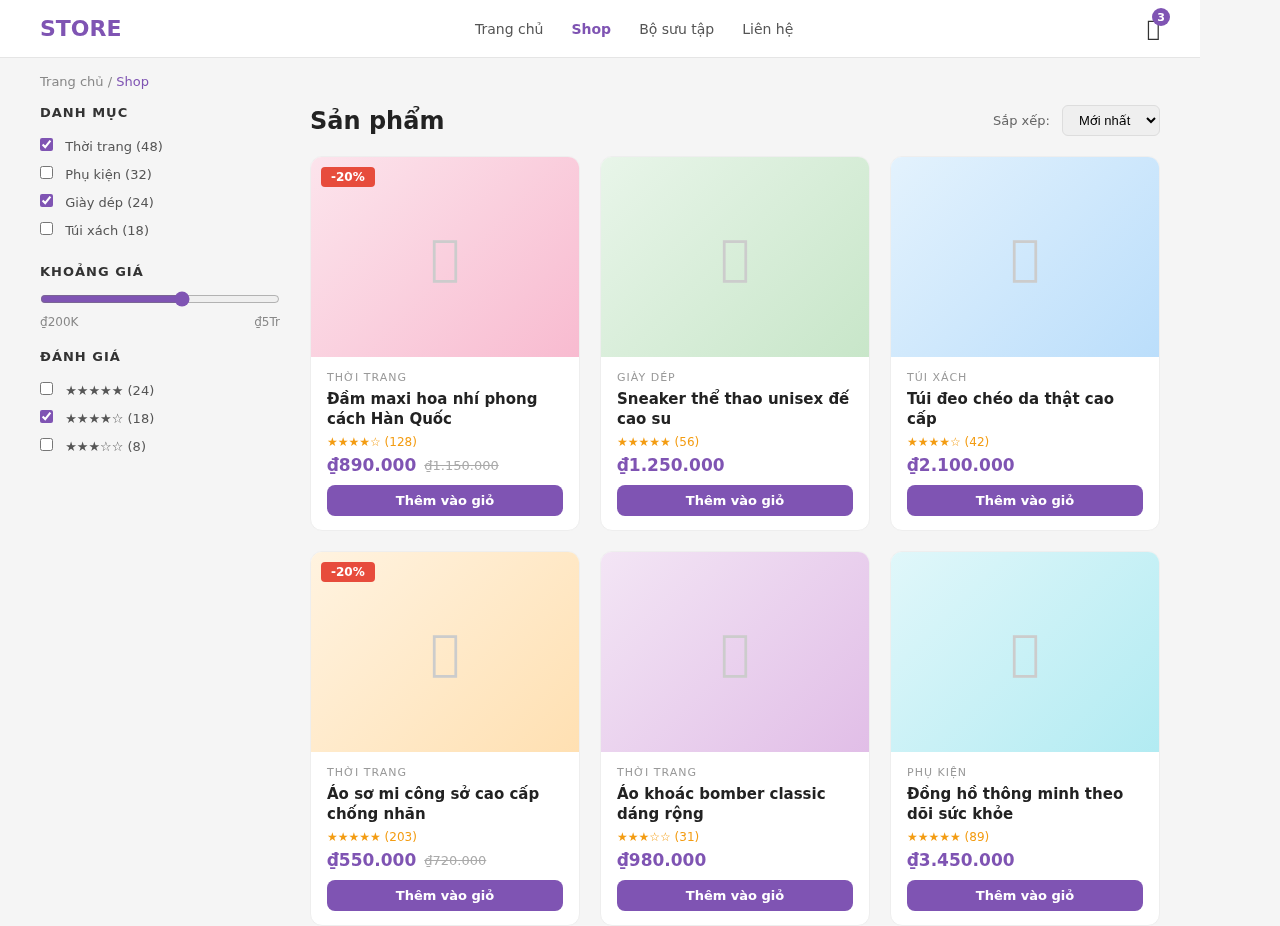
1. Overview of WooCommerce and Common Errors
WooCommerce is the world's most popular e-commerce plugin, powering over 30% of all online stores globally. With millions of users and thousands of compatible plugins and themes, errors are inevitable. WooCommerce issues typically stem from 5 main root causes:
- Plugin/theme conflicts – Security, caching, or SEO plugins can conflict with WooCommerce.
- Incompatible PHP version – WooCommerce requires a specific minimum PHP version.
- Outdated WooCommerce templates – Your active theme contains old WooCommerce template files that are incompatible with the latest version.
- Misconfiguration – Incorrect setup of checkout, cart, payment, or shipping pages.
- Server limitations – Underpowered hosting, exhausted PHP memory, or timeouts when processing large orders.
Before diving into specific errors, remember one golden rule: Before fixing any error, back up your entire website (files + database). This allows you to restore easily if troubleshooting causes a more serious issue. Additionally, enable WP_DEBUG in your <code>wp-config.php</code> file to view detailed error logs:
<code>define('WP_DEBUG', true);
define('WP_DEBUG_LOG', true);
define('WP_DEBUG_DISPLAY', false);</code></pre>
<p>Once debug mode is enabled, all errors will be logged in <code>/wp-content/debug.log</code>. This is the first and most critical step to identifying the root cause of any problem.
2. WooCommerce Cart Errors – Causes and Fixes
The shopping cart is the heart of any e-commerce website. When the cart malfunctions, customers cannot add products, update quantities, or items disappear from the cart. Below are the most common cart errors and how to resolve them:
2.1. Unable to Add Products to Cart
This is a nightmare for any store owner. Customers click "Add to cart" and nothing happens, or an error message appears. Common causes include:
- AJAX Add to Cart is disabled: Go to <code>WooCommerce → Settings → Products → General</code> and ensure "Enable AJAX add to cart buttons on archives" is checked.
- JavaScript errors: Open the browser console (F12); if you see red JS errors, that is the culprit. Often caused by cache/minify plugins over-compressing JS. Disable JavaScript minification and try again.
- PHP Session not working: WooCommerce uses PHP sessions to store cart data. If your hosting does not support sessions or has run out of disk space for session files, the cart will fail. Check with your hosting provider.
- Incorrect URL slug: Some themes customize the "add-to-cart" slug, causing conflicts. Try switching to a default theme (Storefront or Twenty Twenty-Four) to test.
2.2. Cart Quantity Not Updating
Customers change product quantities in the cart, but clicking "Update cart" does nothing. The most common cause is aggressive caching. If you use a caching plugin such as WP Rocket, W3 Total Cache, or LiteSpeed Cache, add the cart page (<code>/cart/</code>) and checkout page (<code>/checkout/</code>) to the Exclude list. Also, verify whether your theme properly calls the <code>woocommerce_cart_updated</code> function.
2.3. Cart Empties After Navigating to Another Page
Customers add a product to the cart, navigate to another page, and return to find the cart empty. This is a cookie/session issue. Common causes include:
- Inconsistent domain: The website runs on both www and non-www (e.g., <code>https://shop.com</code> and <code>https://www.shop.com</code>). Cookies from one domain do not carry over to the other. Choose one primary domain and redirect the other via <code>.htaccess</code>.
- Improper Force HTTPS: If the site loads mixed HTTP and HTTPS pages, sessions will drop. Install an SSL certificate and force HTTPS across the entire website.
- Hosting disk space full: When hosting storage is full, PHP cannot write session files → the cart keeps resetting. Check your hosting disk usage.
3. WooCommerce Checkout Page Errors
The checkout page determines whether a customer completes their purchase. A minor bug at this step can cost you dozens of orders every day. Below are the most critical checkout errors:
3.1. "Place Order" Button Not Working
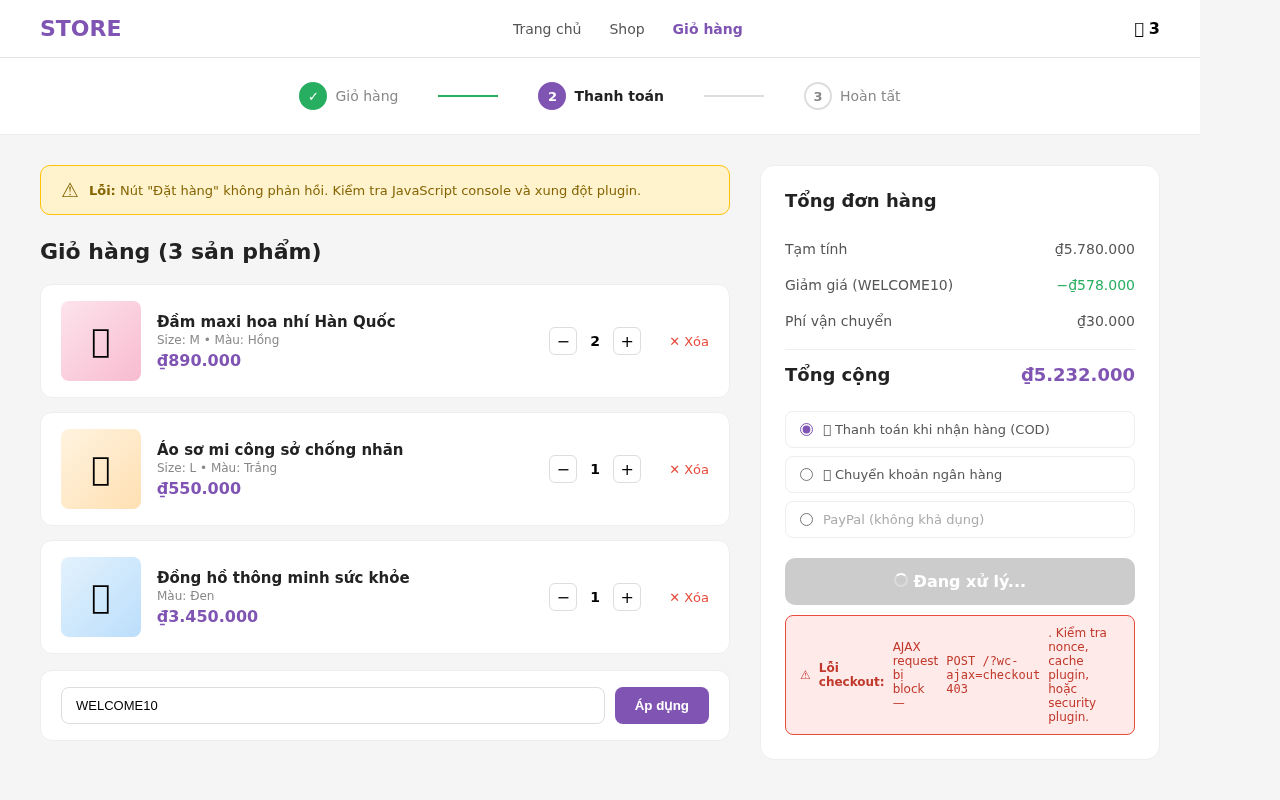
Customers fill in all details, click "Place Order," and nothing happens—or the button turns greyed out and spins indefinitely. This is the most common checkout issue. Check in the following order:
- Check JavaScript Console errors: Press F12 → Console tab to check for red JS errors. If present, a plugin or theme is blocking WooCommerce scripts—usually a caching or optimization plugin.
- Disable plugins one by one (Conflict Test): This is the most reliable method. Deactivate all plugins except WooCommerce and test checkout. If it works, reactivate plugins one by one to find the culprit.
- Check WooCommerce System Status: Go to <code>WooCommerce → Status → Logs</code> and look for the latest <code>fatal-errors</code> log to inspect PHP error details.
- Check Payment Gateway: If you use a custom payment gateway (VNPay, Momo, custom PayPal), switch temporarily to the default "Direct Bank Transfer" method to see if the gateway is causing the issue.
3.2. "Invalid payment method" or "No payment method" Error
Customers select a payment method, but the system flags it as invalid. Causes include:
- Broken Payment Gateway plugin or expired API keys: Verify the API key and secret key for your payment gateway (PayPal, Stripe, VNPay). Expired or revoked keys trigger this error.
- Unsupported PHP version: Some gateways require PHP 7.4+ or 8.0+. Check the gateway plugin requirements and upgrade PHP if needed.
- WooCommerce pages not assigned: Go to <code>WooCommerce → Settings → Advanced</code> and ensure Cart, Checkout, My Account, and Terms pages are properly assigned.
3.3. Shipping Fees Not Displaying or Calculated Incorrectly
Customers enter their shipping address, but no shipping fee appears or the rate is wrong. Troubleshooting steps:
- Check Shipping Zones: Go to <code>WooCommerce → Settings → Shipping → Shipping Zones</code> and ensure a zone is created with at least one shipping method added.
- Check Store Address: Go to <code>WooCommerce → Settings → General</code> and verify your Store Address is accurate. WooCommerce uses this to calculate distances and shipping rates.
- Flat Rate shipping not showing: If using Flat Rate, make sure a cost > 0 is entered (or enter 0 for free shipping).
- Cached shipping calculations: Some caching plugins store old shipping calculations. Purge the cache after updating shipping settings.
4. WooCommerce Payment Gateway Errors
Payment gateways bridge the gap between your customers and your revenue. When a gateway fails, you lose sales immediately. Here are common issues with popular gateways:
4.1. PayPal Checkout Errors
PayPal is the most widely used international payment gateway on WooCommerce. Common issues include:
- "Things don't appear to be working at the moment": Usually caused by an improperly configured IPN (Instant Payment Notification). Go to PayPal Business Account → Account Settings → Notifications → IPN and add the URL: <code>https://yourdomain.com/?wc-api=WC_Gateway_Paypal</code>.
- Orders stay in "Pending payment" after payment: PayPal IPN failed to send confirmation back to your site. Check IPN logs in PayPal and error logs in WooCommerce → Status → Logs.
- PayPal Sandbox works, Live does not: You forgot to switch API keys from Sandbox to Live. Double-check your Client ID and Secret Key.
4.2. VNPay / Momo / ZaloPay Errors
For the Vietnamese market, local payment gateways are essential. Common issues include:
- No redirect back to website after payment: The Return URL is misconfigured or does not match your actual domain. Verify it in your payment gateway merchant portal.
- Checksum / Signature mismatch: Each gateway uses its own checksum security mechanism. If the secret key is wrong, transactions are rejected. Check every character of your secret key carefully.
- IPN URL not public: If your site is in maintenance mode or the IPN URL is blocked by a security plugin/firewall, the bank cannot send payment confirmations. Whitelist the gateway's IP addresses in your firewall.
4.3. SSL / HTTPS Errors on Checkout
WooCommerce requires HTTPS on checkout pages. If your SSL certificate is expired or misconfigured, customers see a "Not Secure" warning and abandon their cart. Check the following:
- Verify SSL certificate validity (use SSL Checker).
- Force HTTPS in WordPress: Install Really Simple SSL or add rules to <code>.htaccess</code>.
- Mixed Content: Some images, CSS, or JS files still load over HTTP. Open the browser console (F12) to check for mixed content warnings.
5. WooCommerce Product Display Errors
Products not displaying properly prevent customers from buying or mislead them about item details. Here are the most serious product display issues:
5.1. Products Not Showing on the Shop Page
You created a product, but the shop page (<code>/shop/</code>) is blank. Check:
- Catalog visibility: Edit the product → "Publish" box on the right → set Catalog visibility to "Shop and search results" (not "Hidden").
- Out-of-stock products hidden: Go to <code>WooCommerce → Settings → Products → Inventory</code> and uncheck "Hide out of stock items from the catalog" if you want out-of-stock items visible.
- Cache: Purge all caches (plugin cache + server cache + CDN cache). Newly added products may not appear due to stale cache.
- Wrong product category: Ensure the product is assigned to at least one active, visible category.
5.2. Product Images Not Loading (Broken Images)
Broken product images quickly erode customer trust. Common causes include:
- Wrong domain in image URLs: After migrating a site to a new domain, image URLs in the database may still point to the old domain. Use Better Search Replace to update old URLs to the new domain.
- Hotlink Protection blocking images: Some hosts enable hotlink protection, inadvertently blocking your own site from displaying images. Check cPanel → Hotlink Protection.
- Incorrect file permissions: The <code>wp-content/uploads</code> folder should have 755 permissions, and files inside should be 644. Overly strict permissions (e.g., 600) prevent images from loading.
- CDN issues: If using a CDN (Cloudflare, BunnyCDN), purge the CDN cache and verify the CDN is operating normally.
5.3. Product Variations Not Showing or Unselectable
Customers try to pick a size or color, but the dropdown is disabled or fails to load. This is a classic AJAX variations issue:
- Increase PHP Memory Limit: WooCommerce needs ample memory to load variations. Add to <code>wp-config.php</code>: <code>define('WP_MEMORY_LIMIT', '256M');</code>
- Increase Max Input Vars: If a product has many variations (>50), PHP may hit input variable limits. Increase <code>max_input_vars</code> in <code>php.ini</code> to 2000 or 3000.
- AJAX variation threshold: Add a filter to <code>functions.php</code> to raise the AJAX threshold: <code>add_filter('woocommerce_ajax_variation_threshold', function() { return 100; });</code>
- JavaScript Error: Check the browser console; if you see a <code>wc-add-to-cart-variation</code> error, a theme or plugin is conflicting.
6. WooCommerce Email Delivery Errors
Order confirmation emails and admin notifications are critical. When they fail to send, customers don't know if their order was received, and you miss new order alerts. This is a severe issue.
6.1. Why Emails Fail to Send
- Hosting blocks PHP mail(): Many shared hosts disable the PHP <code>mail()</code> function to prevent spam. You must use SMTP instead.
- Emails land in spam: Gmail and Yahoo have strict spam filters. Without DKIM, SPF, and DMARC records, server-sent emails go straight to Spam or get blocked entirely.
- Incorrect WooCommerce email settings: Go to <code>WooCommerce → Settings → Emails</code> and verify "Enable this email notification" is checked for each email type.
- Wrong admin email: The recipient email address is misspelled or does not exist.
6.2. How to Fix WooCommerce Email Issues
- Install an SMTP Plugin: The best plugins are WP Mail SMTP or Post SMTP. Connect via Gmail API, SendGrid, Mailgun, or any SMTP server. This is the most reliable fix.
- Configure SPF/DKIM/DMARC: Add DNS records for your domain to authenticate outgoing emails, boosting inbox delivery rates up to 99%.
- Check email logs: Use WP Mail Logging to see which emails were sent, which failed, and why.
- Check cron jobs: WooCommerce relies on WP Cron to dispatch emails. If cron is disabled or failing, emails won't send. Install WP Crontrol to inspect scheduled tasks.
7. WooCommerce Database and Performance Errors
As your store grows in products and orders, the database becomes a bottleneck. Here are common database issues and how to optimize them:
7.1. Slow Website with Many Products
Stores with 500+ products taking 5–10 seconds to load indicate inefficient database queries. Fixes include:
- Optimize the database: Use WP-Optimize to clean up post revisions, transients, and orphaned metadata. Run weekly.
- Index database tables: Add indexes to <code>wp_postmeta</code> and <code>wp_woocommerce_order_items</code> for large databases. This requires MySQL expertise.
- Disable WooCommerce Admin: WooCommerce Admin analytics continuously queries the database. If unused, disable it with: <code>add_filter('woocommerce_admin_disabled', '__return_true');</code>
- Disable Cart Fragments on non-cart pages: By default, WooCommerce loads AJAX cart fragments on every page, consuming resources. Disable it if your theme doesn't need real-time cart updates everywhere.
- Use Object Cache: Enable Redis or Memcached if supported by your host to drastically reduce database queries.
7.2. "Error establishing a database connection"
This is the classic WordPress white screen error indicating a database connection failure. Troubleshooting steps:
- Check <code>wp-config.php</code>: Verify DB_NAME, DB_USER, DB_PASSWORD, and DB_HOST. If your host changed the database password without updating this file, this error occurs.
- Check the database server: Is MySQL/MariaDB running? Check service status in your hosting control panel.
- Overloaded database: Shared hosting often limits concurrent connections (typically 15–30). High simultaneous traffic causes connection refusals.
- Repair database: Add <code>define('WP_ALLOW_REPAIR', true);</code> to <code>wp-config.php</code> and visit <code>https://yourdomain.com/wp-admin/maint/repair.php</code> to repair tables.
8. Errors After Updating WooCommerce
Keeping WooCommerce updated is necessary, though updates can occasionally trigger unexpected bugs. Common post-update errors include:
8.1. White Screen of Death After Update
If the site shows a blank white screen after updating WooCommerce, it indicates a PHP Fatal Error. How to fix:
- Enable WP_DEBUG to inspect the exact error in <code>debug.log</code>.
- Often caused by an outdated PHP version: Newer WooCommerce releases require PHP 7.4+. Check and upgrade PHP.
- Incompatible plugin/theme: Use FTP to rename the suspected plugin folder to deactivate it.
- If you cannot fix it immediately, roll back WooCommerce to the previous version using WP Rollback.
8.2. Outdated Templates
In <code>WooCommerce → Status</code>, you may see "Your theme has outdated WooCommerce template files." This means your theme overrides older WooCommerce templates, causing layout or functional bugs. How to fix:
- Compare your theme's template files with the latest WooCommerce templates (in <code>wp-content/plugins/woocommerce/templates/</code>).
- Update the theme templates to match the new version, or remove the overrides to use WooCommerce's default templates.
- If building a custom theme, use hooks and filters instead of overriding templates to prevent future issues.
9. Other Common WooCommerce Errors
9.1. Pagination Errors on the Shop Page
Your shop has 100 products, but pagination fails—page 2+ returns a 404 or duplicates page 1. Usually caused by a conflict between permalink settings and the theme. Go to <code>Settings → Permalinks</code> and click "Save Changes" (without changing anything) to flush rewrite rules. Also check if your theme uses a custom query on the shop page.
9.2. "No shipping methods available" Despite Configuration
You configured Shipping Zones and methods, yet customers still see "No shipping methods available." Check:
- Does the customer's address fall within your configured Shipping Zone (verify region/zone matching)?
- Does the product require shipping (Virtual/Downloadable products skip shipping)?
- Is another plugin conflicting with shipping zones (commonly advanced shipping rate plugins)?
9.3. Incorrect Price Display
Product prices display differently from what you entered. Common causes:
- Tax settings: You entered tax-exclusive prices, but the site displays tax-inclusive prices. Adjust "Display prices in the shop" and "Display prices during cart and checkout" under <code>WooCommerce → Settings → Tax</code>.
- Currency mismatch: If using a multi-currency plugin, exchange rates may be outdated. Update your exchange rates.
- Discount plugins: Some sale plugins apply unintended automatic discounts. Review active discount/sale plugins.
10. General WooCommerce Troubleshooting Workflow
Whenever you encounter a WooCommerce error, apply this 7-step debugging workflow:
- Back up the entire site – Files + Database. Always step one.
- Enable WP_DEBUG – Inspect detailed PHP error logs in <code>/wp-content/debug.log</code>.
- Check WooCommerce System Status – Go to <code>WooCommerce → Status</code> and check Logs for <code>fatal-errors</code>. System Status also flags PHP version, outdated templates, and server issues.
- Clear all caches – Plugin cache, server cache, CDN cache, and browser cache. Many errors vanish after purging cache.
- Conflict Test – Switch theme to Storefront (WooCommerce's default theme) and deactivate all plugins except WooCommerce. If the error disappears, reactivate items one by one to isolate the culprit.
- Check JavaScript Console – Press F12 in your browser and open the Console tab. JS errors cause most frontend issues.
- Update everything – WordPress core, WooCommerce, themes, and all plugins. Upgrade PHP to the latest version supported by your host (minimum 7.4, recommended 8.0+).
11. Optimizing WooCommerce Performance for E-Commerce
A smooth-running WooCommerce site not only experiences fewer errors but also retains customers better. Here is an in-depth performance optimization checklist:
11.1. Server-Side Optimization
- PHP 8.0+: PHP 8.0 is roughly 30–40% faster than PHP 7.4. PHP 8.1 or 8.2 is even better if supported.
- MySQL 5.7+ or MariaDB 10.3+: Newer database engines offer better performance schemas and query optimization.
- Nginx + FastCGI Cache: On a VPS, configuring Nginx instead of Apache handles more concurrent requests efficiently.
- Redis Object Cache: Reduces database queries by 50–70% for large WooCommerce catalogs.
- OPcache: PHP OPcache stores compiled bytecode, reducing PHP execution time per request.
11.2. WordPress/WooCommerce Optimization
- Remove unused plugins: Every active plugin adds overhead. Completely delete (don't just deactivate) unnecessary plugins.
- Disable WooCommerce Analytics if unused: As noted, analytics consumes database resources.
- Disable cart fragments on non-shop pages: Eliminates unnecessary AJAX calls.
- Limit products per page: Displaying 100+ products per page slows loading. Cap it at 24–48 products/page.
- Optimize product images: Use WebP format and compress images under 100KB. Imagify or Smush can automate this.
12. When Should You Hire a WooCommerce Expert?
You won't always be able to fix every issue yourself. Consider hiring a specialist in these situations:
- Database-related errors: Complex SQL queries, data migrations, and repairing corrupted tables require MySQL expertise.
- Payment failures: When checkout or payment gateways fail, you lose money every minute. Hire an expert for rapid resolution.
- Post-update errors without safe rollback: Rolling back can sometimes risk order data. Experts can patch or merge code without rolling back.
- Hacked website or backdoors: Malware cleanup is highly specialized work requiring deep security knowledge.
- Lack of time: DIY troubleshooting can take 2–3 days of trial and error, whereas an expert resolves it in 1–2 hours—freeing you to focus on your business.
If you need help fixing WooCommerce errors, don't hesitate to contact us. With years of experience resolving WooCommerce issues from simple to complex, we guarantee thorough fixes that keep your online store stable and professional.
13. Conclusion
WooCommerce is a powerful platform for building an e-commerce website, though technical glitches are part of operating any online store. From cart, checkout, payment, and email errors to performance bottlenecks—every issue has a solution when you apply the right methodology.
Remember the golden workflow: Back up before fixing → Enable debug logs → Run a conflict test → Keep everything updated. This process has helped thousands of WooCommerce store owners resolve issues successfully.
Most importantly, don't panic. Every WooCommerce bug has a fix. With patience and the step-by-step guidance in this article, you can resolve most common errors yourself and get your online store back on track.
If you found this guide helpful, share it with fellow online business owners so they can troubleshoot effectively too. Wishing you smooth operations and e-commerce success!
<hr />
Frequently Asked Questions
[faqs]
How do I know which plugin is causing a WooCommerce error?
Run a Conflict Test: deactivate all plugins except WooCommerce and switch to the Storefront theme. If the error disappears, reactivate plugins one by one and test after each activation. Whichever plugin triggers the error again is the culprit. This is the most accurate diagnostic method.
Why is WooCommerce slow even on powerful hosting?
Common reasons include an unoptimized database (excessive post revisions, expired transients), lack of object caching (Redis/Memcached), missing page caching, or too many unnecessary plugins. Check WooCommerce → Status for performance warnings. Additionally, having too many product variations (>100 per product) often slows down loading.
Will WooCommerce lose orders during an update?
Orders are stored in the database as custom post types, so they are not deleted during a WooCommerce update. However, if an update fails mid-process and corrupts the database, orders could be affected. Always back up your database before updating to stay safe.
Which hosting is best for WooCommerce in Vietnam?
For the Vietnamese market, choose hosting with datacenters in Vietnam or Singapore for fast load speeds. Popular choices include Kinsta (premium global), Cloudways with Vultr Singapore (mid-range, flexible), StableHost, or local WordPress hosts like MonaHost and AZDIGI (Vietnamese support, reasonable pricing). For stores under 1,000 products, a 2–4GB RAM WordPress hosting plan is sufficient.
Should I use free WooCommerce or buy paid plugins?
Free WooCommerce core is already very powerful and covers most basic e-commerce needs. You only need paid plugins for advanced requirements like multi-currency, bookings, subscriptions, complex shipping rules, or specialized payment gateways (VNPay, Momo). Free plugins on WordPress.org typically cover 80% of store needs.
How do I automate daily WooCommerce backups?
Use UpdraftPlus (free) or BlogVault (paid, with real-time backups). Schedule daily automatic backups to cloud storage like Google Drive or Dropbox. For stores processing many orders daily, real-time backups (triggered on every new order) are recommended to prevent data loss.
Does WooCommerce support Vietnamese?
Yes. WooCommerce is fully translated into Vietnamese. You can install the Vietnamese language pack via <code>Dashboard → Updates</code> or download <code>.mo/.po</code> files from WordPress Translation. For any untranslated strings, you can use Loco Translate to customize them.
Facing an urgent website issue? Contact JAYbranding's professional WordPress website repair service — 24/7 support with free backups before any fix.
[/faqs]