How to Register Google Business and Verify Your Business on Google Maps
Registering Google Business: Google Business is an essential platform that helps businesses manage their information and interact with customers on Google Maps and Google Search. It is a free and highly useful tool for businesses to enhance their online presence and attract new customers. With Google Business, businesses can update their information, including address, opening hours, phone number, and website. In addition, they can upload photos and videos to showcase their products and services to customers. This makes it easier for customers to find your business on Google Maps and learn more about what you offer. Furthermore, Google Business provides features to manage and track customer traffic on your business profile. By reviewing customer feedback and responding to them, businesses can improve the quality of their products and services and increase customer satisfaction. To use Google Business, you need to sign in to your business Google account and verify your information on this platform. Once verified, businesses can easily manage their information on Google Business and Google Maps. In summary, Google Business is a vital tool that helps businesses increase their online presence and engage with customers on Google Maps and Google Search. Much like creating a Facebook Fanpage, setting up Google Business helps businesses attract new customers and improve the satisfaction of existing ones.
Sign in to your business Google account
To verify your business on Google Business and Google Maps, you need to sign in to your business Google account on the Google My Business website. After signing in, you can proceed to verify your business.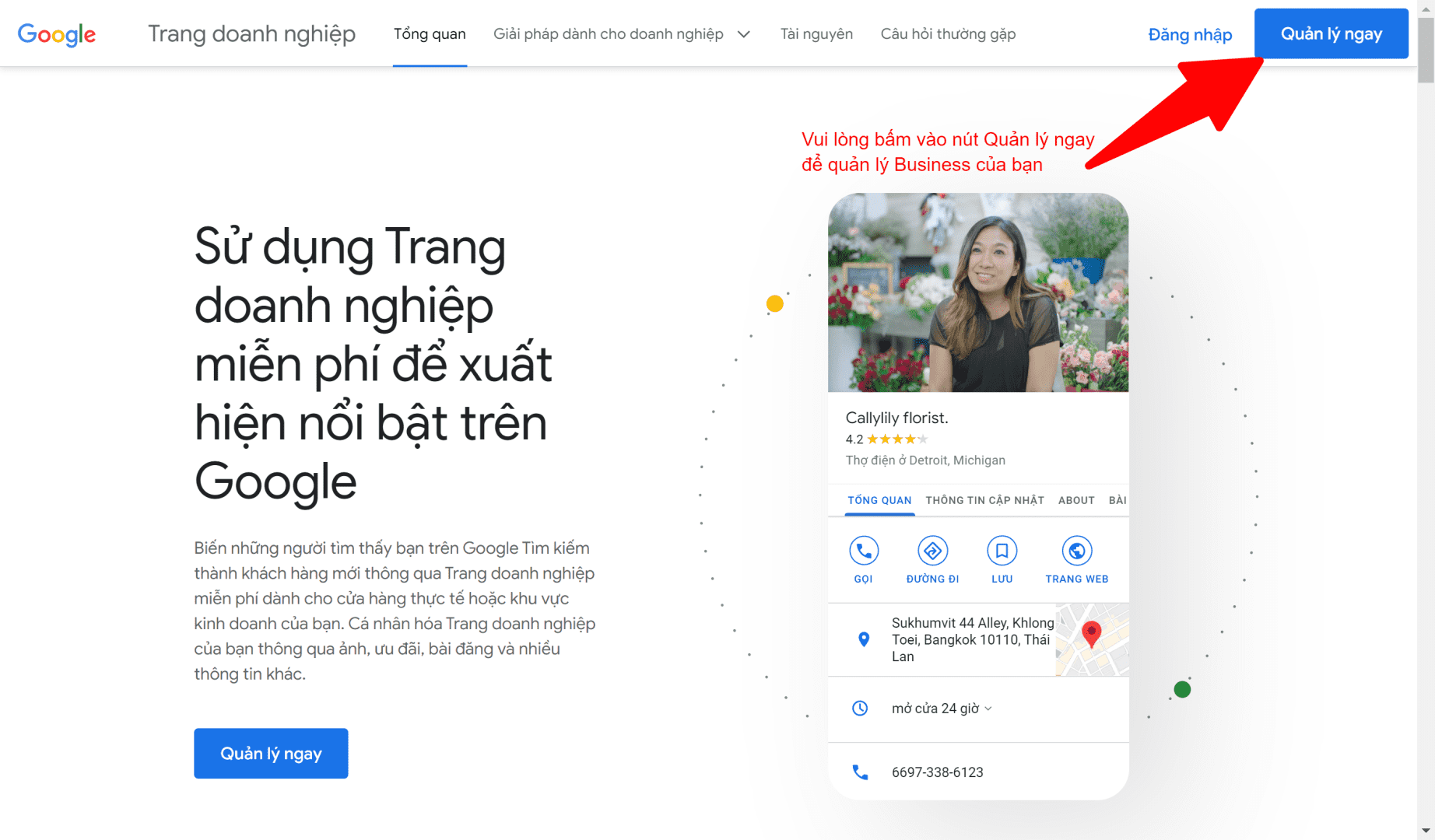
Select your business to register Google Business
After signing in, you need to select the business you want to verify. If you have not yet registered your business on Google My Business, add your business information by clicking the "Add location" button and entering the required details. If you have already registered your business, select it to continue the verification process.Choose a verification method
After selecting your business, you will be asked to choose a verification method: by mail sent to your business address or by phone call. Choose the method that suits you best and follow the next steps. This is an important step for Google to confirm whether your business truly exists.Verify by postal mail, phone call, or video
If you choose to verify by mail, make sure your business address is accurately updated on Google My Business. After requesting verification, you will receive a postcard from Google containing a verification code. You must then sign in to your Google My Business account and enter the verification code to complete the process. If you choose to verify by phone call, make sure you can answer the call from Google within 5 minutes. You will receive a verification code from Google's support team. Afterward, sign in to your Google My Business account and enter the verification code to complete the verification process. Update: In some cases, Google will require you to record a video of your current business location instead of using the verification methods above.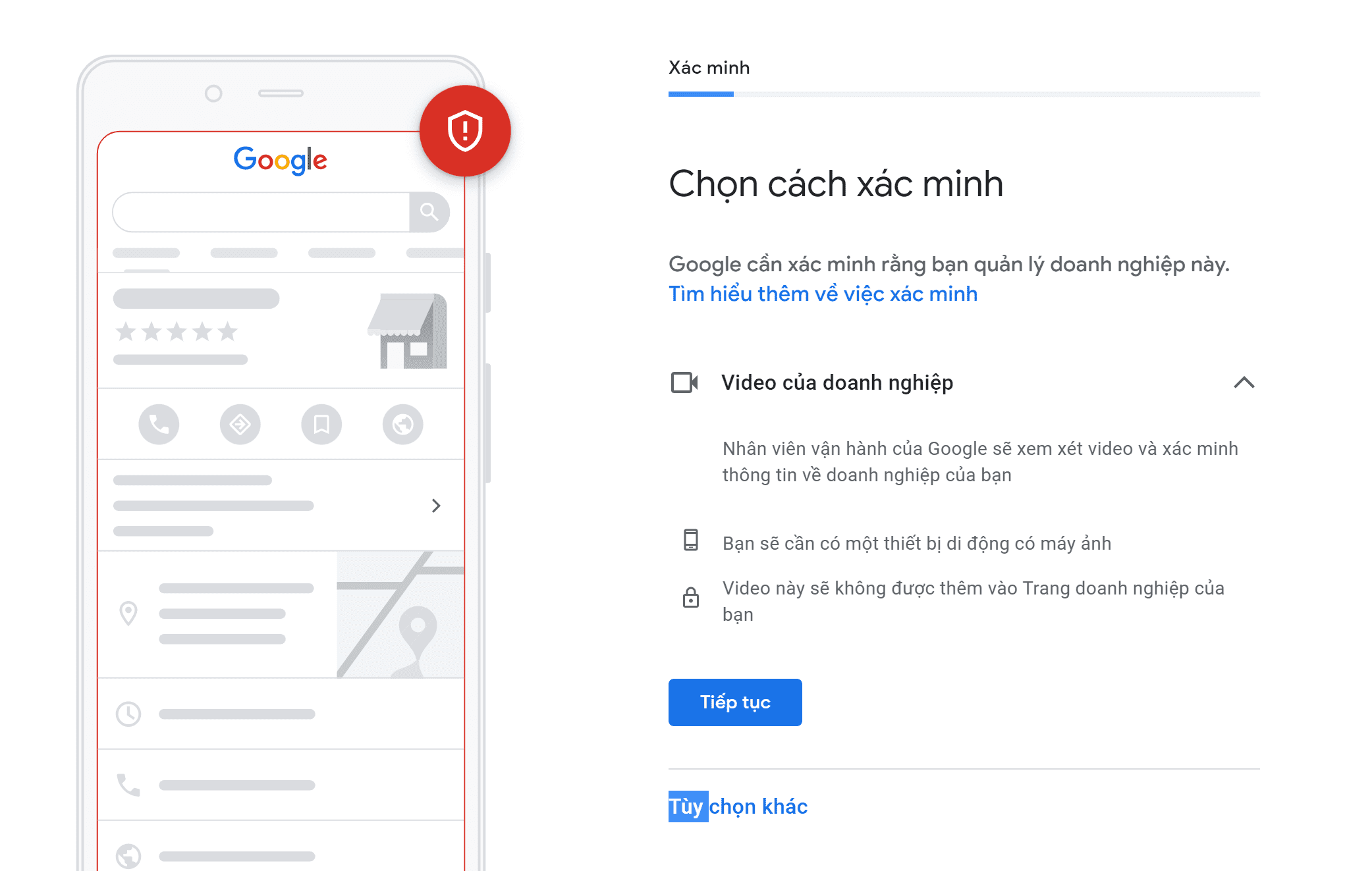
Manage your business information on Google Business and Google Maps
After completing the verification process, you will be able to manage your business information on Google Business and Google Maps. You can update business details, add photos and videos, track visits and customer reviews, and use many other features. This makes it easy for customers to find your business on Google and increases your search visibility. To update photos for your Google Business profile, use the Google Search bar and type in your registered business name. If you are the owner of the business, the search results will appear with management buttons as shown below.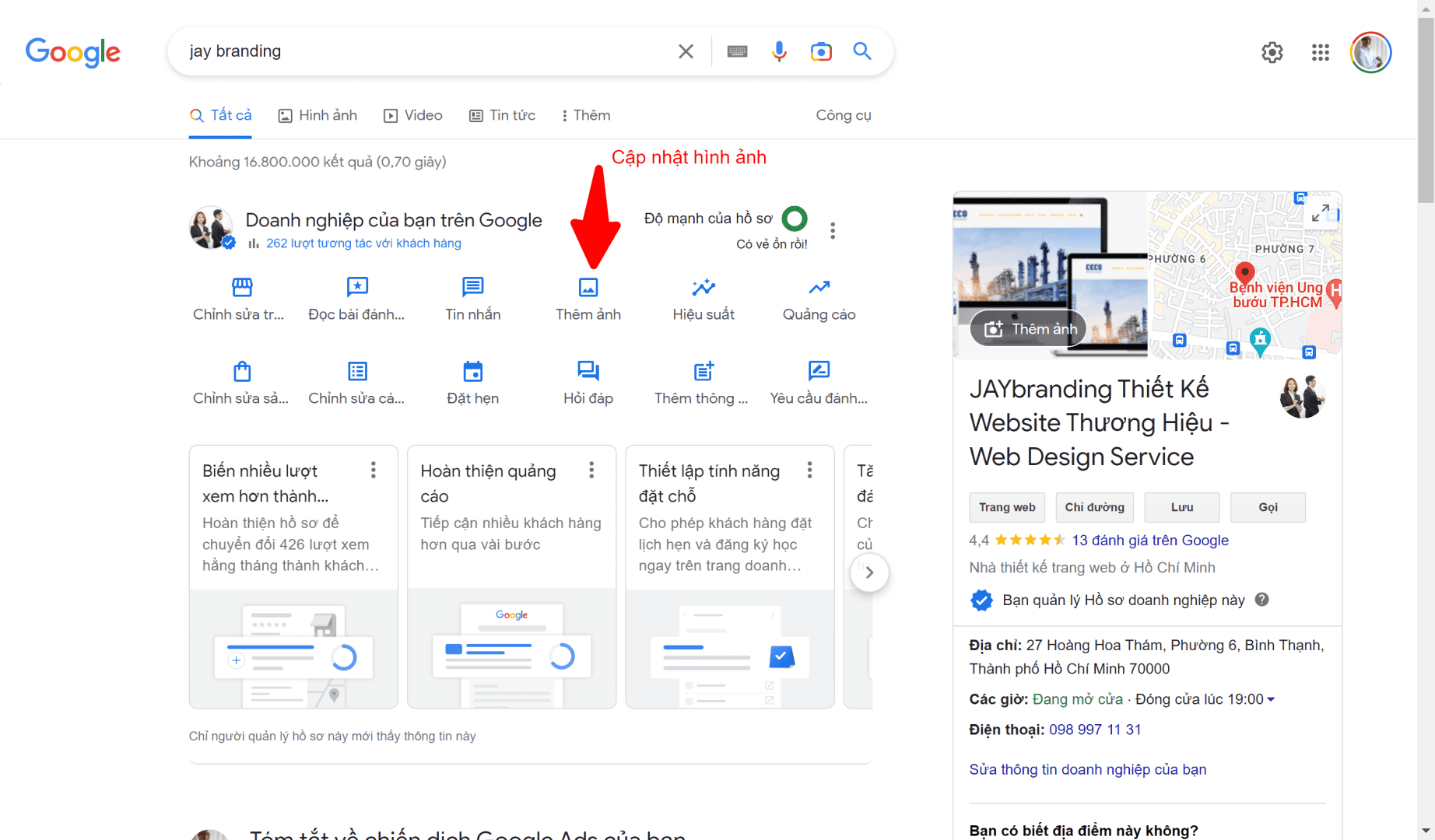
Wishing you success in verifying your business on Google Business and Google Maps!
<blockquote>See More:</blockquote>
-
<blockquote>Corporate Website Design</blockquote>