SECURE YOUR CHATGPT ACCOUNT IN JUST 4 SIMPLE STEPS
ChatGPT knows a lot about you — from your habits and work to the personal questions you have typed into the chat box. So how do you ensure all that data doesn't fall into the wrong hands? With just the 4 simple steps below, you can lock down your ChatGPT account without needing any technical knowledge. Whether you use ChatGPT for financial advice, drafting work emails, or simply chatting daily, your account may contain a great deal of sensitive information. The good news is that OpenAI has already built in strong layers of security — you just need to turn them on.
1. Go to Security Settings
When you open ChatGPT (on desktop or mobile), click on your name in the bottom-left corner to open the menu. Then select Settings, and switch to the Security tab. This is where all your account protection options are located.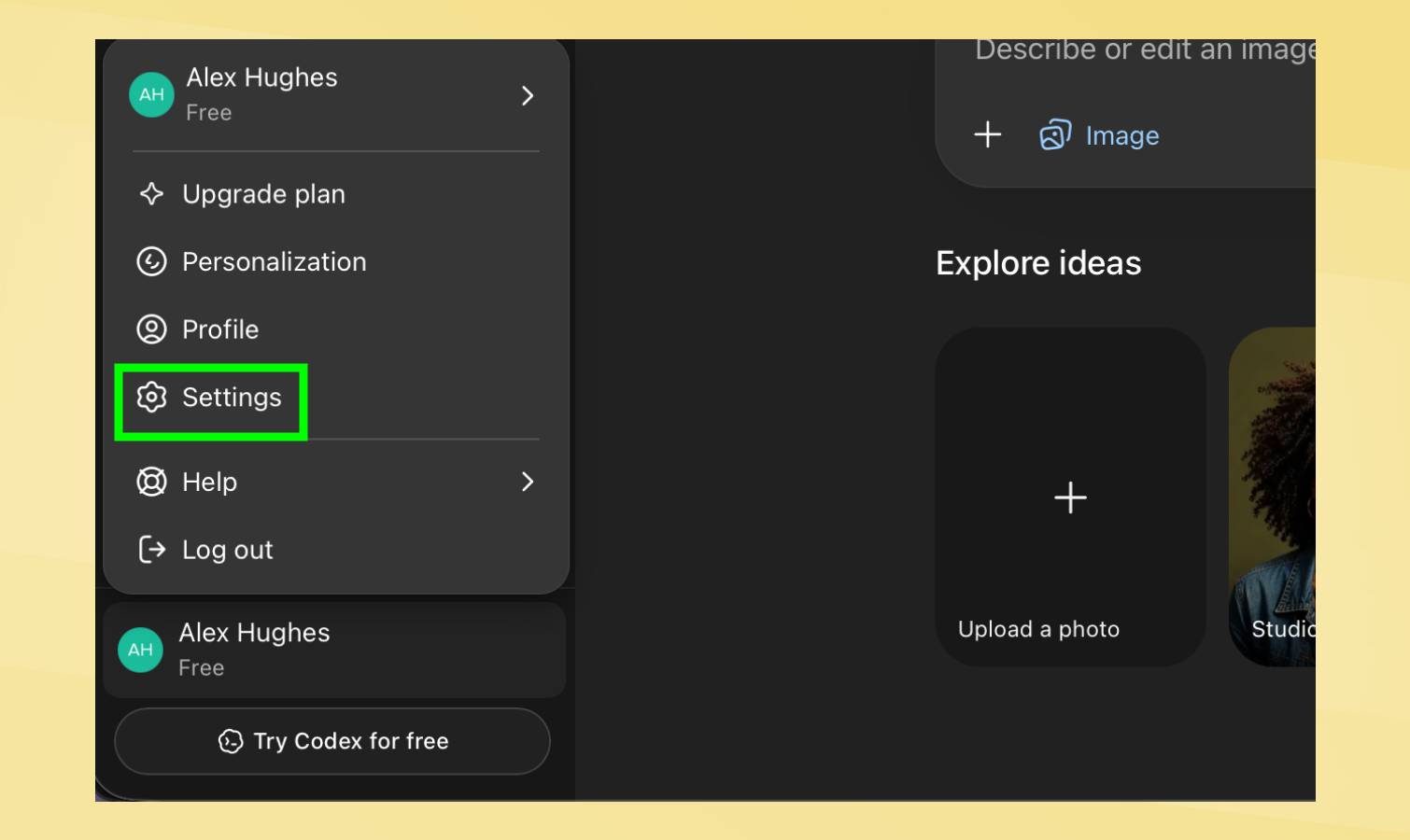 Access the Security section in ChatGPT Settings
2. Set a Strong Password
The first and most important step: change your password. If you are using an easy-to-guess password, or worse — reusing the same password across multiple accounts — now is the time to update it. In the Security section, select Add new password and create one that is at least 12 characters long, including uppercase letters, lowercase letters, numbers, and special characters. Quick tip: use a password manager like Google Password Manager or Bitwarden so you don't have to memorize it.3. Enable Passkey — Sign In with Fingerprint or Face ID
A strong password is great, but it can still be compromised through phishing. ChatGPT now supports Passkeys, allowing you to sign in using your fingerprint, PIN, or Face ID without typing a password. This method is both faster and significantly more secure. In the Security section, scroll down to Passkeys and click Add. ChatGPT will guide you through the setup — you can use your fingerprint on your phone, or Face ID on your MacBook/iPhone. Once set up, you only need to scan your fingerprint or face each time you log in.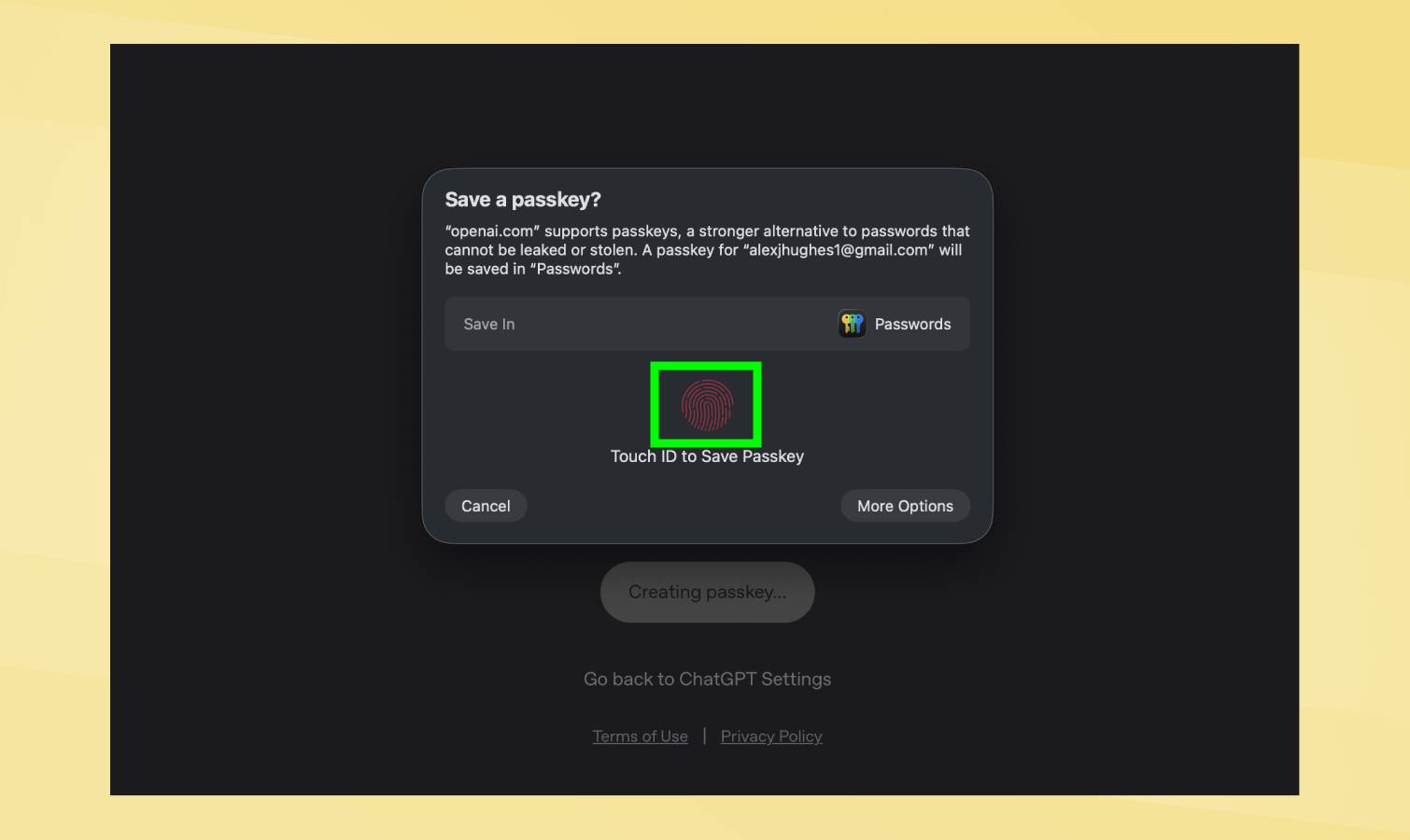 Set up a Passkey to sign in with your fingerprint or face